Common Settings
 In the section Common you can configure
the following settings:
In the section Common you can configure
the following settings:
- Do not run two copies of the program simultaneously
- Minimize to the system tray
- Show the baloon tooltip in the tray
- Minimize by ESC
- Create shortcut on the desktop
- Autorun
- Minimize on startup
- Play sounds without waiting for the previous sound's end
- Load last map used on startup
- Save maps automatically on exit (without confirmations)
Let us review each property in details.
Do not run two copies of the program simultaneously
When this option is selected, you will not be able to start another copy of the program if one copy is already running.
When you attempt to start another copy of the program, you will see the message: "Please use the instance of the program that is
already running." The running instance of the program will be brought to front.
Minimize to system tray
If you have selected this option, whenever you minimize the program, its program icon will be placed to the system tray
instead of Windows taskbar (Fig. 1) When you right-click on the icon in the system tray, you will access the program's context menu
(Fig. 2).
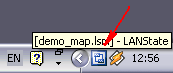
Fig.1: The program's icon in system tray.
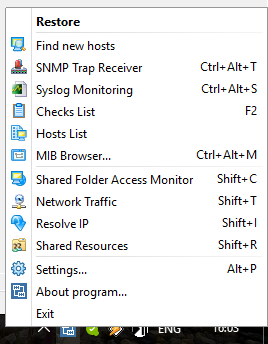
Fig.2: Context menu of the icon in system tray.
Show balloon tips in tray
When this option is selected, the program shows balloon tips in the system tray in the next cases: a) when somebody accesses your shares (a remote username and his computer name will be displayed on the balloon); b) when a monitoring alert arises (the message text can be configured in the alert settings).
Minimize on ESC
When this option is selected, you can minimize the application by pressing the ESCAPE key on the keyboard. Please see the
section Hotkeys for information on other hotkeys available in the program.
Shortcut on desktop
When this option is selected, the program creates a shortcut on the Windows Desktop. This shortcut can be removed from the desktop by
disabling this option.
Autorun
The program will start automatically each time you start Windows.
Minimize on startup
The program will minimize automatically on its startup.
Load last map used on startup
If you have created the map of your network once and would like the program to load this map automatically on its startup, you
should select this option. The last map used is the map that was loaded in the program before the program's last shutdown.
This option frees you from having to scan network all over again. Besides, scanning network takes quite some time, and not all
of connected devices may be found at once (due to number of reasons).
Save maps automatically on exit (without confirmations)
When this option is selected, the program saves changed maps on exit without confirmations.
Play sounds without waiting for the previous sound's end
This setting allows you to play sounds without waiting for the previous sound's end in the program's notification functions.


 Networking Software Bundles