Why a software licensing audit is important? The answer is rather simple. Software is a necessary part for a company's successful operation. Software products are protected by the Copyright Law. Using unlicensed software is against the law and unacceptable for a company of any size. Every IT manager and system administrator must know that installing and using unlicensed software leads to serious fines and punishments. To avoid the unpleasant consequences, you should be aware of what software is used in the company and that the company has got enough licensed for the software being used.
Software License Management
Our program 10-Strike Network Inventory Explorer allows you to audit licenses for software applications, count the number of installed programs, and compare it with the number of purchased licenses for the products. This allows you to perform the basic software license management. Click the License Manager button on the Main tab of the toolbar.
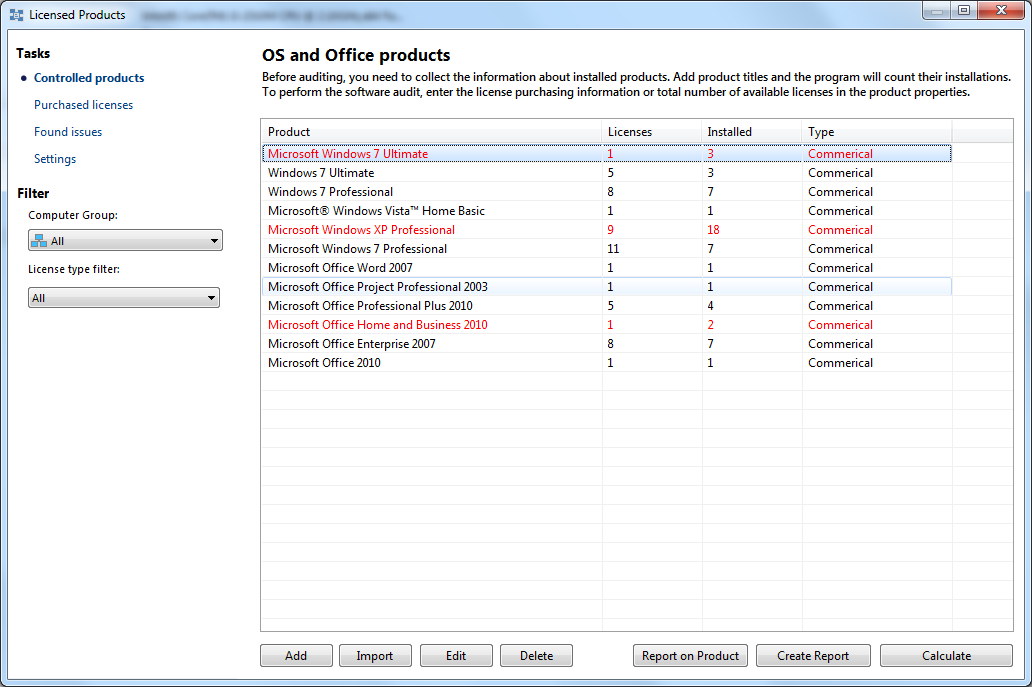
Add names of licensed products for the license auditing (click the New... button).
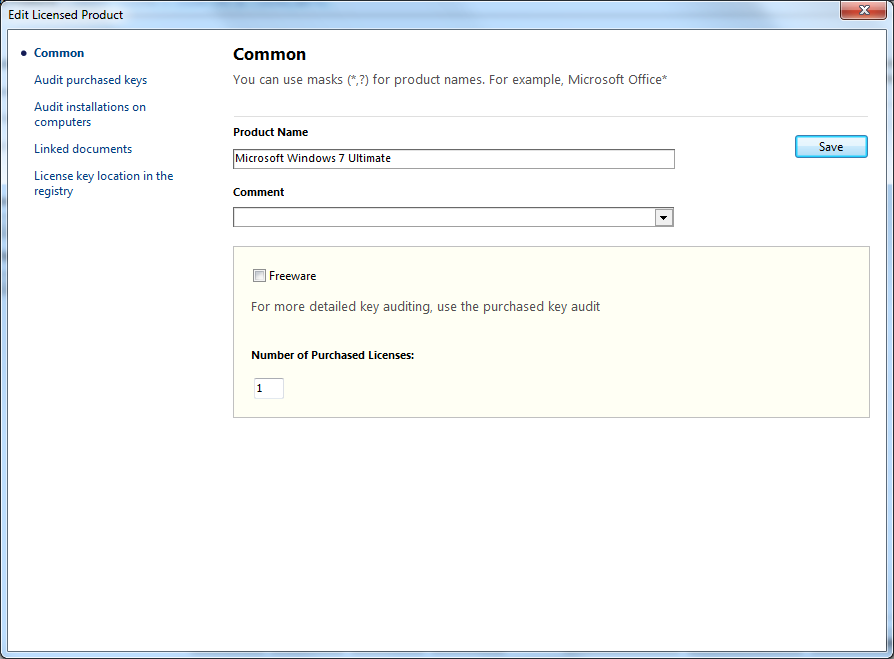
Enter the name of the product you want to audit. The program will search for the product installations in the inventory database. You can enter a part of the name without a version number in order to count all the possible versions. If you enter, for example, Adobe Photoshop, the program will find all versions of this application installed on network computers (6, 7, 8, CS2, CS3, etc.). So, you can perform the software normalization using the program title masks.
Enter the number of licenses you have for the product.
In addition, you can retrieve a product ID and a serial number of the product. To do this, select profiles corresponding to the product in the drop-down lists. The profiles can be configured in the program settings, in the License Information section.
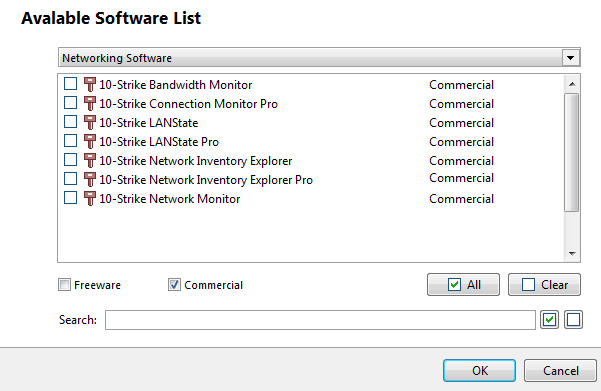
You can also import the existing products that are installed on network computers. To do this, click the Import... button.
After adding the products and entering the license counts for them, you can start auditing licenses. Click the Calculate button. The program will analyze the inventory database and update counts of installed copies of the products. You will see whether you have enough licenses for the installed products. If there are not enough licenses for some product, it will be highlighted by a red color.
Select a product in the upper list and see the list of computers where the selected product is installed below.
You can create two types of reports here:
1) Create a report on the number of available licenses and number of installations of all the listed products. To create this report, click the Report on Licenses button.
2) Create a report on a selected product. Select a product and click the Report on Selected Product button. This report will contain a list of computers where the product is installed. If you configured gathering serial numbers and product IDs, it will be displayed in the table.
License Key Auditing and Monitoring
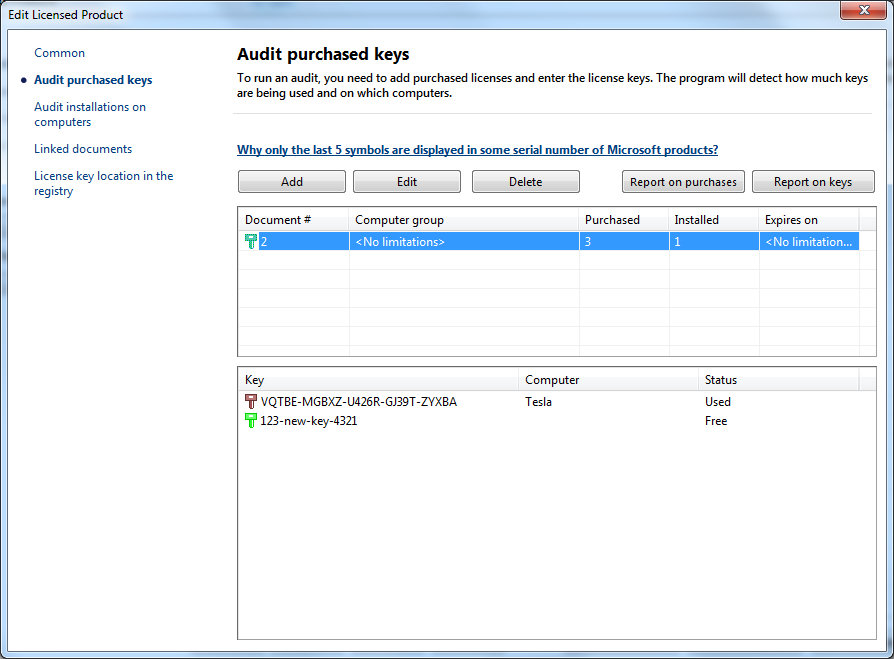
The program has the license key auditing function. Select a program in the list of audited software on the License Manager window and click the "Monitor Reg. Keys" button. Enter valid registration keys for the program. After that, you will be able to see how the entered license keys are used on computers.
Video Review
We have create a short video review on the license and software audit for you. It explains the program's principles and advantages.
Learn more about the license key auditing: