Object's Properties
To open the object's properties window: click the button or select the Properties item on the File menu.
The content of the dialog window depends on the current object, which properties are displayed in the dialog, and on the panel where the object is located (the list of disks pane on the left or the disks' content on the right).
Let us review the possible types of objects. The pane where the object resides is printed in parentheses.
Disk (list of disks pane)
Displays the following information on the disk:
- Title.
- Label.
- Serial number.
- Used space.
- Manufacturer.
- Color of cover.
- Capacity.
- Type (CD-ROM,-R,-RW; DVD-ROM,-R,+R,-RW,+RW).
- Description (Information displayed on the description pane).
- List of groups, which the disk belongs to.
- Memo (additional information on the disk).
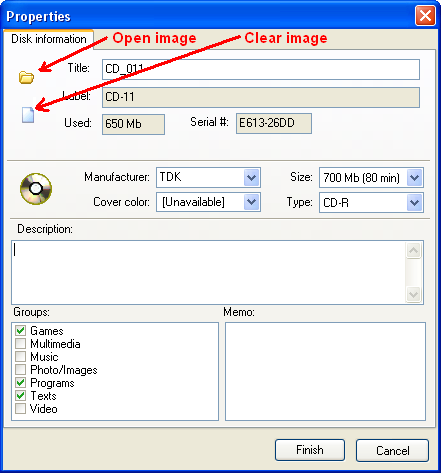
You can assign disk cover images to disks (and folders). To do this, click the "open image" button and select an image file. If you do not need to store the cover image file anymore click the "clear image" button.
Folder (list of disks pane)
Additional information on the disk is not available. Other than that, this dialog is similar
to the disk properties dialog.
Folder/File (files pane)
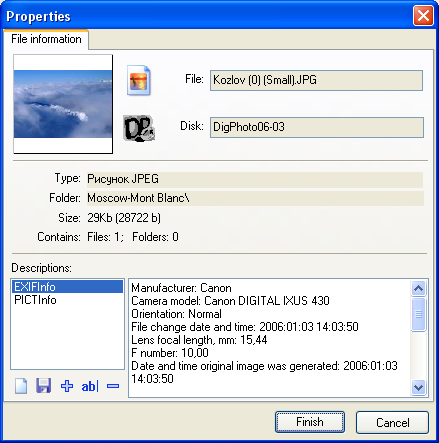
Displays the following information on the folder:
- Name of the disk / folder where the object is located.
- Object name.
- Object type.
- Path to object.
- Folder size.
- Number of files and folders contained in the object.
- Object description pane (for viewing and modifying descriptions).
Group of files / folders (files pane)
Object description pane is not available. Other than that, this dialog is similar to the folder/file properties dialog.