
OSM-Karte / Geomap
Hosts in the monitoring database can be displayed on an interactive map Open Street Map with reference to specific addresses and coordinates (locations and buildings).
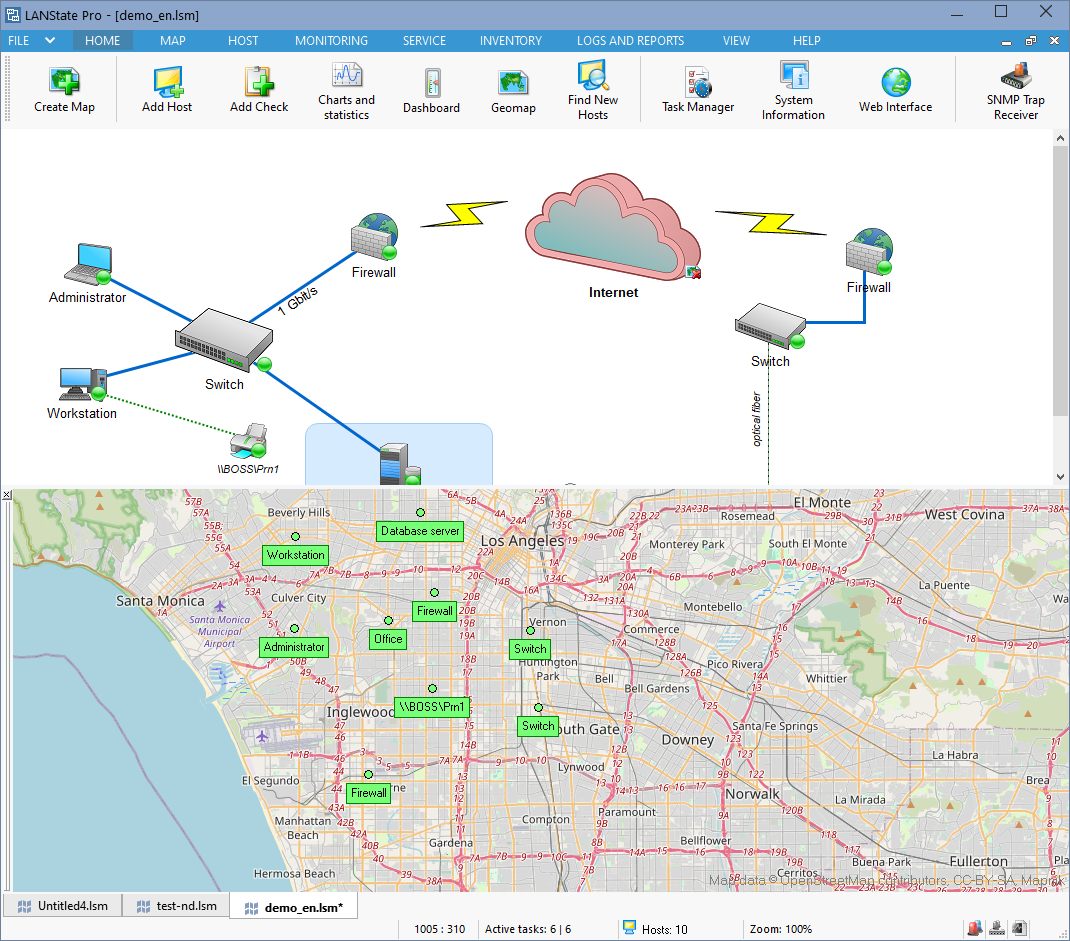
There are several ways to place hosts on a geomap:
- Öffnen Sie Geomap window (use the Hauptmenü's Geomap button). Wählen Sie host icons on the Netzwerkkarte, and click Geomap | Add host to geomap in their Kontextmenü. Save the Netzwerkkarte file.
- Create a text list of hosts in the format:
DNS;IP;MAC;Name;Comment;Address;;
example: ALEX;192.168.1.1;00-11-22-33-44-55-66;My computer;Work computer; Antonína Cermáka 2a Prague;;
or
DNS;IP;MAC;Name;Comment;;Latitude;Longitude
example:
SERVER;192.168.1.2;01-12-23-34-44-55-66;Server;Server room 21;;33.63738;67.345435
Import hosts into the program from the Hauptmenü:Hosts | Add hosts from file. When you open the Geomap window, the added hosts will be displayed with reference to the specified addresses or coordinates.
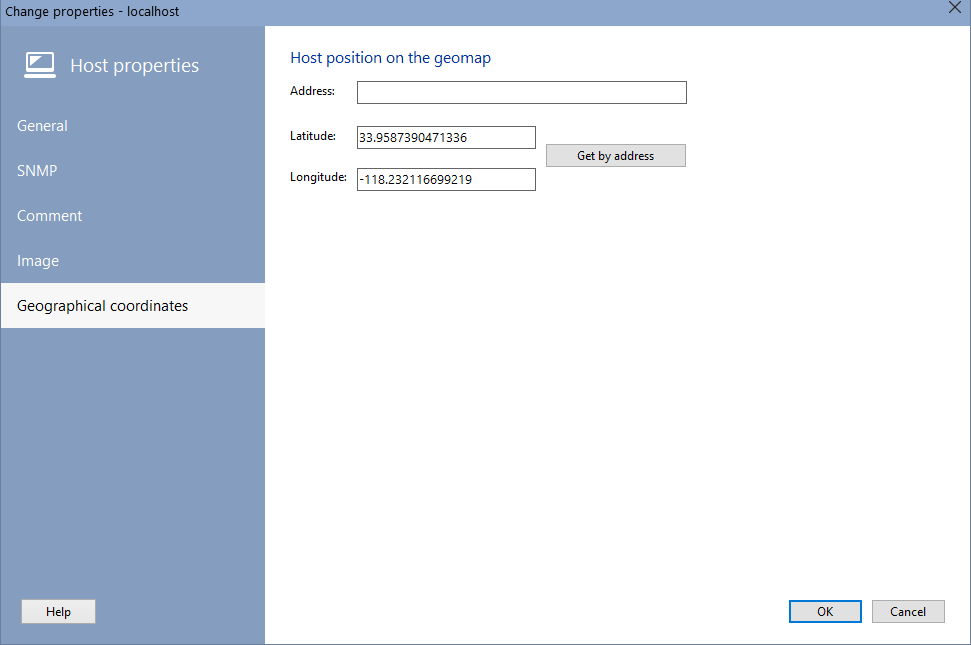
- Öffnen Sie Host Properties dialog. Go to the Geographical coordinates tab. Enter the address or coordinates in the xx.xxxxxx format. Save the changes and update the map (use the map Kontextmenü, the Update item).
- Call the map Kontextmenü (using the right mouse button), select Place host. Select one or more hosts from the list. Click OK. Move the captions to the desired addresses.
- Call the Kontextmenü of the geomap, select the item Place all hosts from the current map. Drag the host markers to the desired locations.
When you click on a hosts caption on the map, its parameters and check status are displayed.
Using the caption's Kontextmenü you can:
- Remove the tag from the map. The host itself remains in the monitoring database, only the coordinates and address parameters are deleted
- Öffnen Sie CCTV camera video stream for viewing if the host has an active RTSP check set up
- Go to the list of checks for this host
Using the map Kontextmenü you can:
- Quickly go to the desired address on the map
- Update the map
- Add hosts to the map
Host labels have a color that corresponds to the status of the host:
- green - all checks have passed
- red - all checks have failed
- yellow - at least one of several checks has failed
In the Programmeinstellungen, in the View section, you can select a map data provider (server) for this widget.
Die folgenden map providers are available now:
- OSM
- ArcGisWorldStreetMap
- Aqicn
- OpenRailWayMap


