
Setting up Receiving Monitoring Notifications in Telegram
This article describes how to create a Telegram bot and set up notifications from host Überwachungsprüfungen in the messenger. This way, you can receive alerts on your smartphone and any other devices over the Internet.
1. Creating a chatbot and getting a token in Telegram
First, you need to create a chatbot in Telegram and get its token:
- Open Telegram and search for the BotFather bot (@BotFather).
- Start a conversation with BotFather by clicking the Start button
- Enter the command /newbot to create a new bot. (Or choose from the list).
- BotFather will ask you to enter the bot name (zum Beispiel, MyTestBot). This name will be displayed in contacts
- Then you need to enter the bot username. It must end with bot (zum Beispiel, MyTestBot_bot).
After successfully creating the bot, BotFather will provide you with its token (zum Beispiel, 123456789:ABCdefGhIJKlmNoPQRstuVWXyz).
2. Getting the chat ID
To receive notifications in the Telegram messenger, you also need to know the chat ID. Here's how to get it:
- Send a message to your bot.
- Next, you'll need to follow the link: https://api.telegram.org/bot<YourBotToken>/getUpdates in your browser
Where <YourBotToken> will be your bot's token.
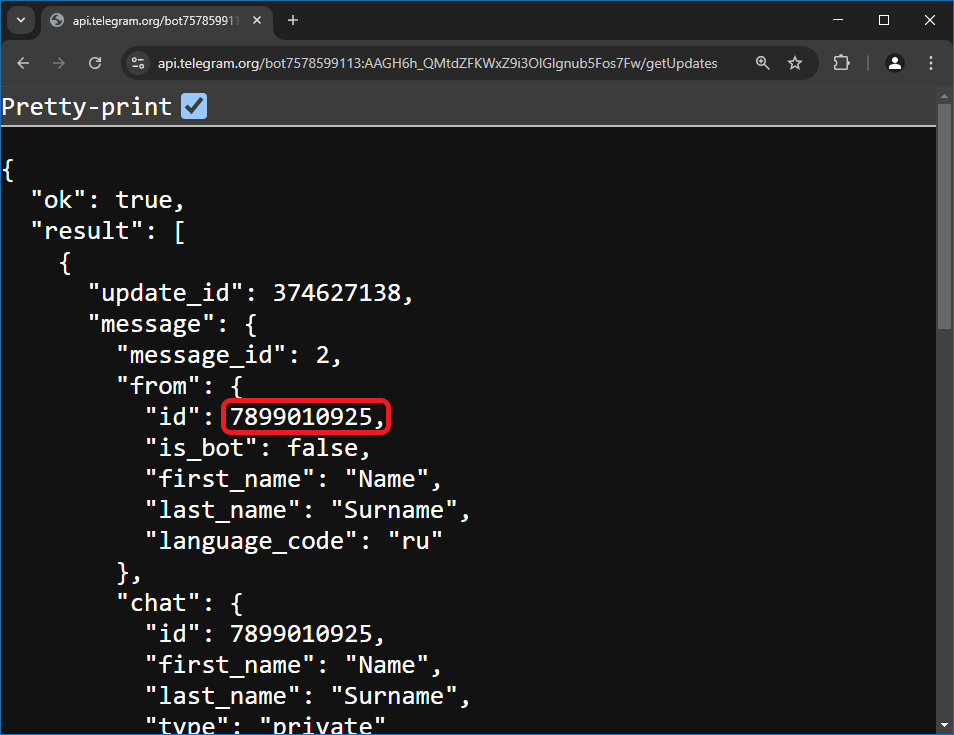
If you did everything correctly, a JSON object will be displayed on the page in the browser. For more convenient display, we recommend checking the box next to Pretty-print in the browser.
Copy the "id" parameter of the "chat" object.
3. Setting up notifications in the program
Next, you need to copy the received data to the program.
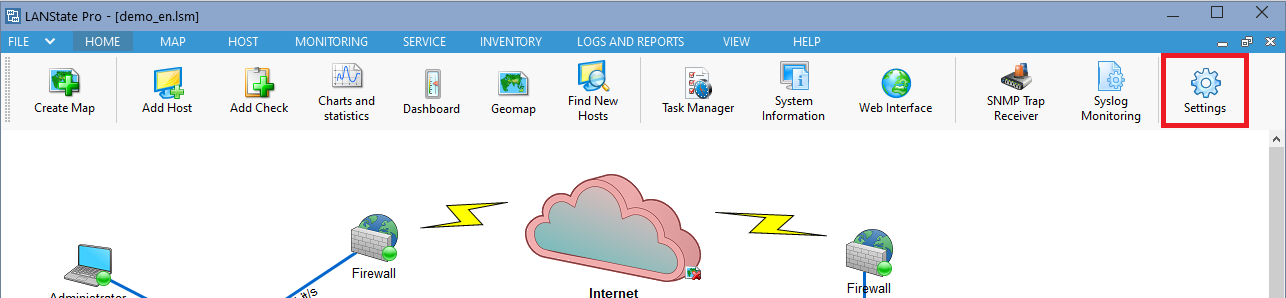
Click Program settings, select Messengers. Paste the received data into the appropriate fields.
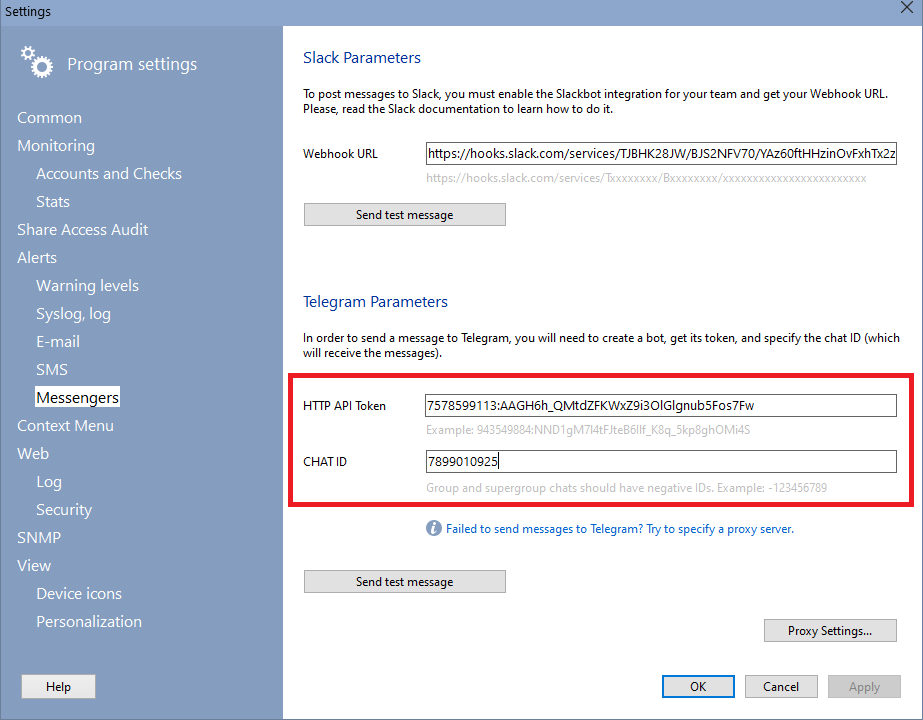
Then in the list of checks, find the check whose monitoring results you want to receive in Telegram. Right-click on it and select the Edit check item in the Kontextmenü.
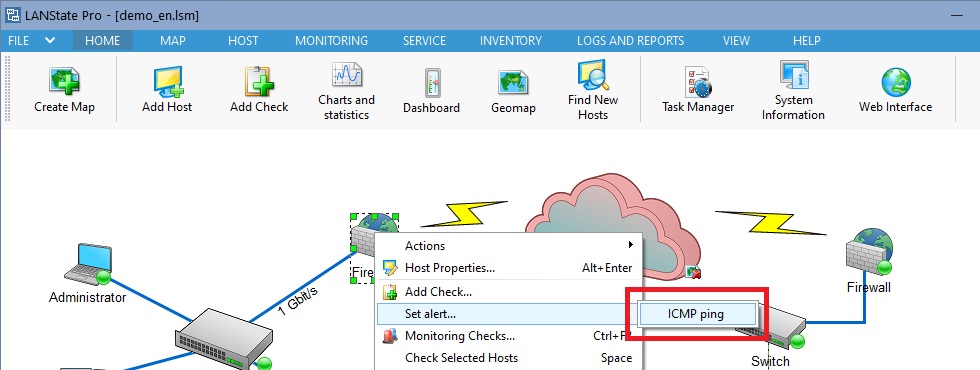
Click Next several times until you reach the Step 3. Then check the box next to Run if check passed or Run if check failed, or both at once.
Specify the Telegram messenger as the notification method, as shown in the image below.
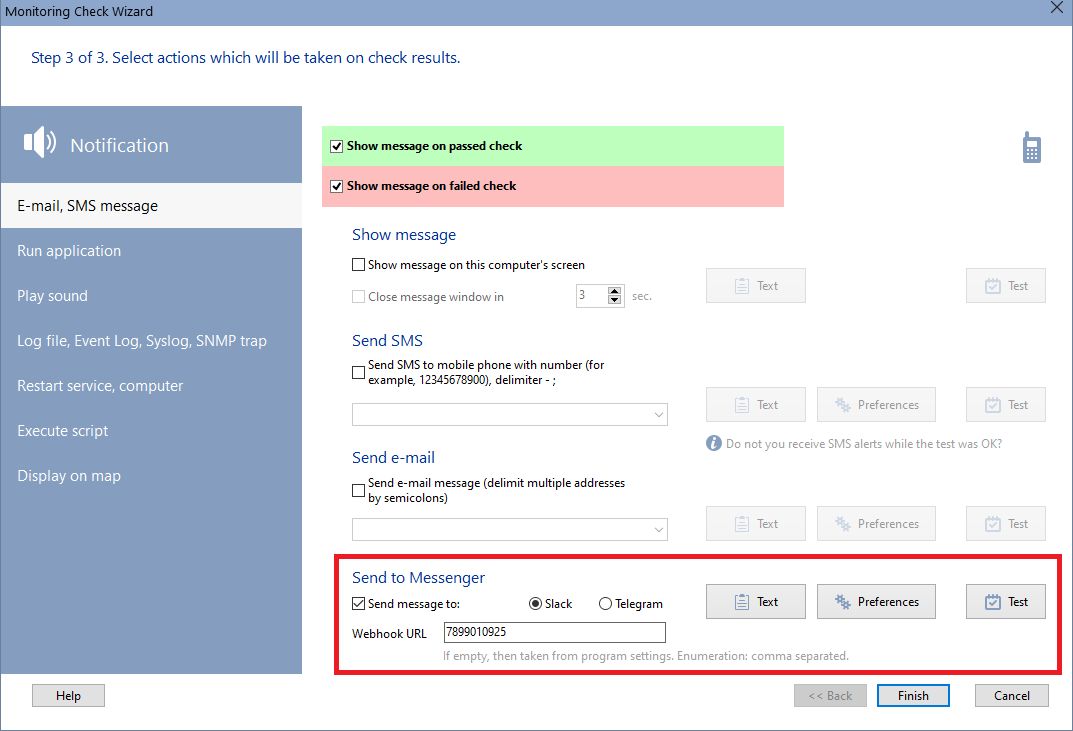
If you plan to receive all notifications in one chat bot, then the Chat ID field can be left blank, since you specified this identifier in the general Programmeinstellungen. At the level of individual Überwachungsprüfungen, this field is needed to be able to send notifications to different chat bots. If you have several bots, specify the ID of the bot that was created for alerts of this particular check.
At this stage, you can immediately test the operation of the notification. When you klicken Sie auf Test button, a test message should be sent to the chat bot.
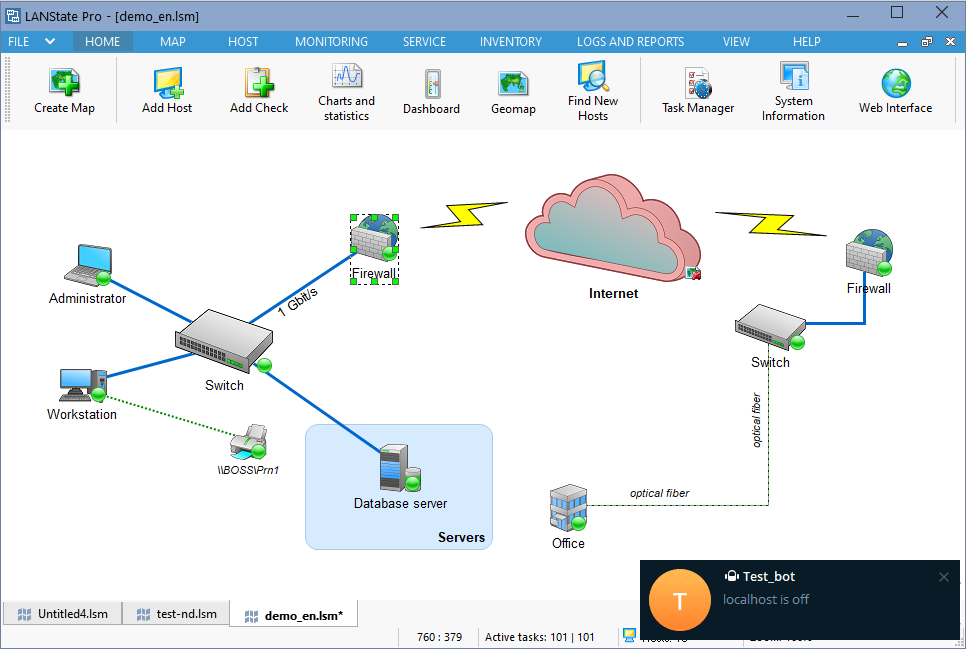
Done.
Now notifications with the results of host Überwachungsprüfungen will come as messages to the Telegram chatbot you created.


