
10-Strike Network Diagram: Interface Description
10-Strike Network Diagram is a multiple-window application that allows working with multiple documents simultaneously. The main window of the application contains menu bar, toolbar, objects pane and object properties pane. The Workspace of Network Diagram has a grid, horizontal and vertical semi-infinite rulers.
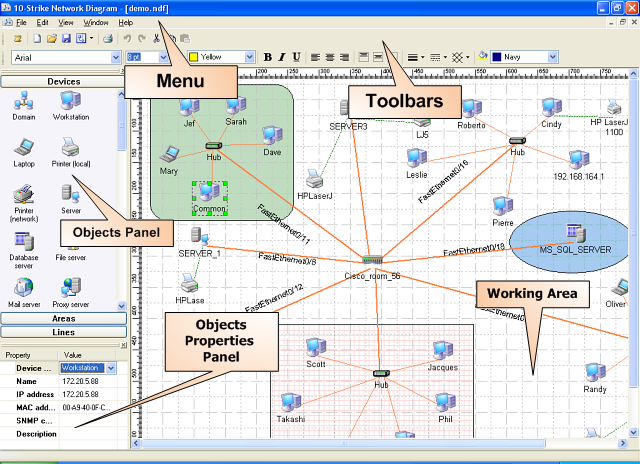
Menu
The application's menu provides access to all of the application's functions.
The File item contains functions for handling document files, export and print functions.
The Edit item contains functions for handling graphic objects, copying/pasting, undoing/redoing last actions.
The View item allows showing and hiding the objects and the object properties panes.
Open document windows can be arranged with the functions available on the Window menu.
To open the online help, information about the application or visit the application developer's website, use the Help menu.
Toolbar
The buttons on the toolbar provide quick access to the most frequently used functions of the application. The first toolbar contains the buttons for opening, saving, exporting, printing a document, launching the new network diagram creation wizard, the buttons for copying/pasting objects from the clipboard, undoing/redoing last actions, etc. The second toolbar contains the buttons and controls for configuring parameters of graphical objects placed on a diagram.
Objects pane
The objects pane is the library of graphical objects, which form a network diagram. The objects library consists of three parts, which include graphical objects of different types. The first - main - part includes a large set of icons for representing different devices; mainly network hardware. The second part is areas. The third part is lines. The number of objects in the library constantly increases, as new versions of the software become available.
Object properties pane
This pane displays the basic properties of a graphical object. For an object of the "device" type, you can set an IP and MAC address, add a comment and change the device type.
The objects and the object properties pane float; in other words, you can "detach" them from the left edge of the main window by grabbing them at the title - the two solid lines at the top. At that moment, the pane will turn into a regular window, which always stays on top of the main application window. To restore the original look of the pane, drag its window back to the left edge of the main application window and drop the pane there. You can hide the pane by clicking on the little "Close" button in the upper-top corner. To show the pane, tick off the corresponding item on the View menu.
Workspace
All graphical objects in an open document reside on the application's workspace. That space is semi-infinite; that means, you can utilize any amount of the space to the right and to the bottom of the workspace, without limitations. All operations related to handling graphical objects are described in the Working with objects section.


