Share Access Monitoring
With the share auditing software 10-Strike Connection Monitor, you can
- view a list of users and their computers connected to your shared files and folders
- watch opened files and folders on your shares
- record this data to the audit log file
- be notified on the file access in the real-time (via e-mail, sound, screen message, etc.)
- be notified on the file creation or deletion in specified folders
- be notified when someone downloads a huge amount of data or opens many files.
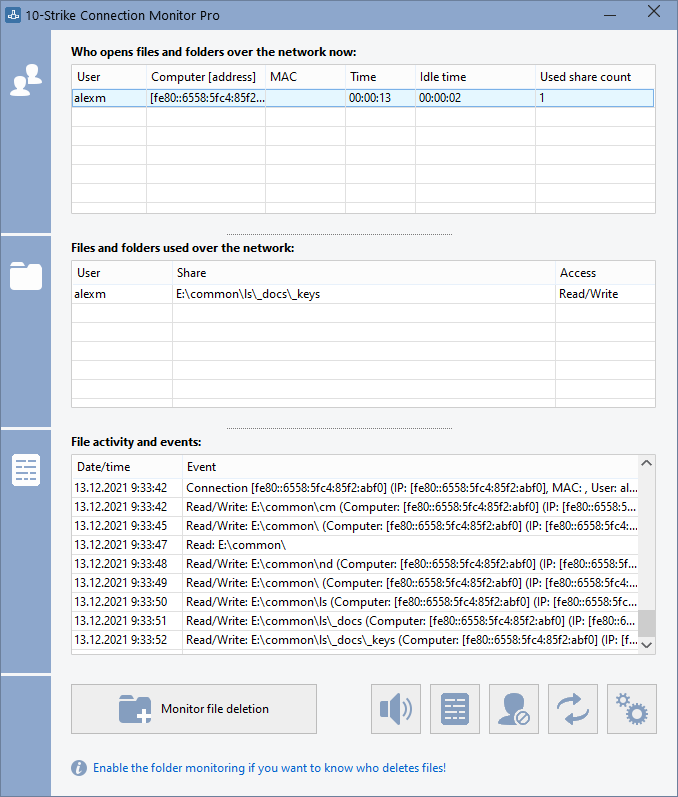
The main window displays the information on active connections to your shares and includes:
- user name, who has accessed your share
- computer name (and IP address), which has accessed your share
- connection time
- number of opened shares
- share path
- file access type
The lists are updated automatically, with the period configured in the program settings.
Notifications on new connections
When a new connection occurs, you will be notified with a sound, tray hint, and message window in the upper right corner of the screen. You can configure notification types, sound file, and number of seconds for displaying notification message in the monitoring settings window.
Notification alerts
You can configure alerts and get notifications when the specified user connects to your folders (or the specified computer, or IP address). The program can notify you by several methods.
Learn more here: Connection alerts and notifications
Log files
Connection log (see the file Connect.log in the program's folder) is maintained if the options Monitor connections constantly is selected in the program's monitoring settings and Maintain connections log is selected in the log settings. All connections to your network shares will be recorded in the log file, which you can view by clicking the Log button on the main window.
Learn more here: Viewing the access log file
Managing access to shares
You can manage network access to your shares using the following functions:
- Disconnect users manually using the context menu (the items "Disconnect", "Close share", "Close all").
- Disconnect users automatically using the Black List.
- Disable or enable access to all shares using the program context menu in the Windows tray (the items "Close access", "Open access"). When you disable network access the server service (Lanmanserver) is stopped and no one can access your shares. When you enable network access the server service is started again.

Inventory Hardware and Software on Network Computers

Monitor Network Servers, Services, Managed Switches, etc.

Monitor and Manage Network Hosts on a Visual Map, Create Network Maps

Monitor Network Bandwidth and the Internet Traffic Usage

Create Network Diagrams, Discover Network Topology

Search Files on Network Shares and FTP Servers

Audit Remote User Access to Shares (Folders and Files)

Free Program for Scanning Networks, Hosts, and TCP Ports
 Networking Software Bundles